
How many customers did your team call today? Do you know, or are you guessing?
With EasyCall, your team calls customers straight from a computer. Every call is recorded and added to your reports automatically, so you can see who is doing well, when customers pick up, and which customers were missed.
- No equipment to buy
- No technical skills needed
- We set it up for you
Ordinary phones leave nothing behind
Your team calls from desk phones or their own SIM cards. Once a call ends it is gone, and nobody can look back at it.
"I don't really know what my team is doing"
- "How many customers did we reach today?"The answer is always a rough guess.
- A customer complains, and nobody remembers what was saidThere is no recording to check, only someone's account of it.
- You can't tell who is strong and who needs coachingYou judge by gut feeling, so rewards and warnings cause arguments.
- Customer lists are called once, then forgottenAnyone who didn't pick up is never called again, and that lead is lost.
"I lose time on things that aren't selling"
- Dialing every number and writing down every result by handAfter each call it's back to the spreadsheet, then a report at the end of the day.
- Calling all morning and nobody picks upNo one knows which hours customers actually answer.
- Using a personal SIM for company workWork and private life get mixed, and customers call back after hours.
- Doing well with nothing to prove itThe effort never shows up in any number.
Your team isn't lazy. You just can't manage what you can't see.
Your team just makes the call. The rest happens by itself.
EasyCall is a web page. A team member opens it, types a number, presses Call and talks to the customer through a headset. While they talk, EasyCall does three things on its own:
- Records the call so you can listen to it any time
- Saves the result: answered, busy or no answer
- Adds it to the reports for that person and their team
Three questions you still have to ask around for. Now the answers are on your screen.
1. "How is the team doing?"
Five numbers at the top of the page answer it, for today, the last 7 days or the last 30 days, for the whole company or one team.

- Calls madeHow many calls the team placed
- AnsweredHow many calls a customer picked up
- Talk timeTotal hours actually spent talking to customers
- Good callsThe customer stayed on for 30 seconds or more
- Quick hang-upsThe customer hung up within 10 seconds, a sign the opening line needs work
2. "Who is doing well, and who needs coaching?"
A scoreboard compares each person and each team on calls made, how often customers pick up, and talk time. Whoever you reward or coach, you have the numbers to back it up.

- Top team memberThe person with the best results in the period
- Best time slotWhen customers pick up most often
- Leading teamWhich team is beating the average
- Never reachedCustomers who have not picked up even once
3. "What did my team say to the customer?"
Every call is one line: who called, at what time, whether the customer picked up, and how long they talked. Press play to listen to it on the spot. When there is a complaint or a new hire to train, you have the recording itself.
Same people, same customer list, more deals closed
A calling team earns from the conversations it actually has with customers. EasyCall shows three places where those conversations are being lost.
Illustrative potential based on the demo account and workflow improvements. Results depend on your team, customer list and sales process.
Call when customers pick up
EasyCall shows which hours and which days customers answer most. Put your effort into those hours instead of spreading calls evenly through the day.
Miss no customer
The list of customers you haven't reached is always ready for a second try. The money spent on leads and advertising doesn't go to waste.
Copy your best person
Listen to your top performer's recordings to hear how they open a call, then use those same calls to train everyone else.
These figures come from the EasyCall demo account and are shown as an example. Your own numbers appear after your first days of calling.
If they can use a phone, they can use EasyCall
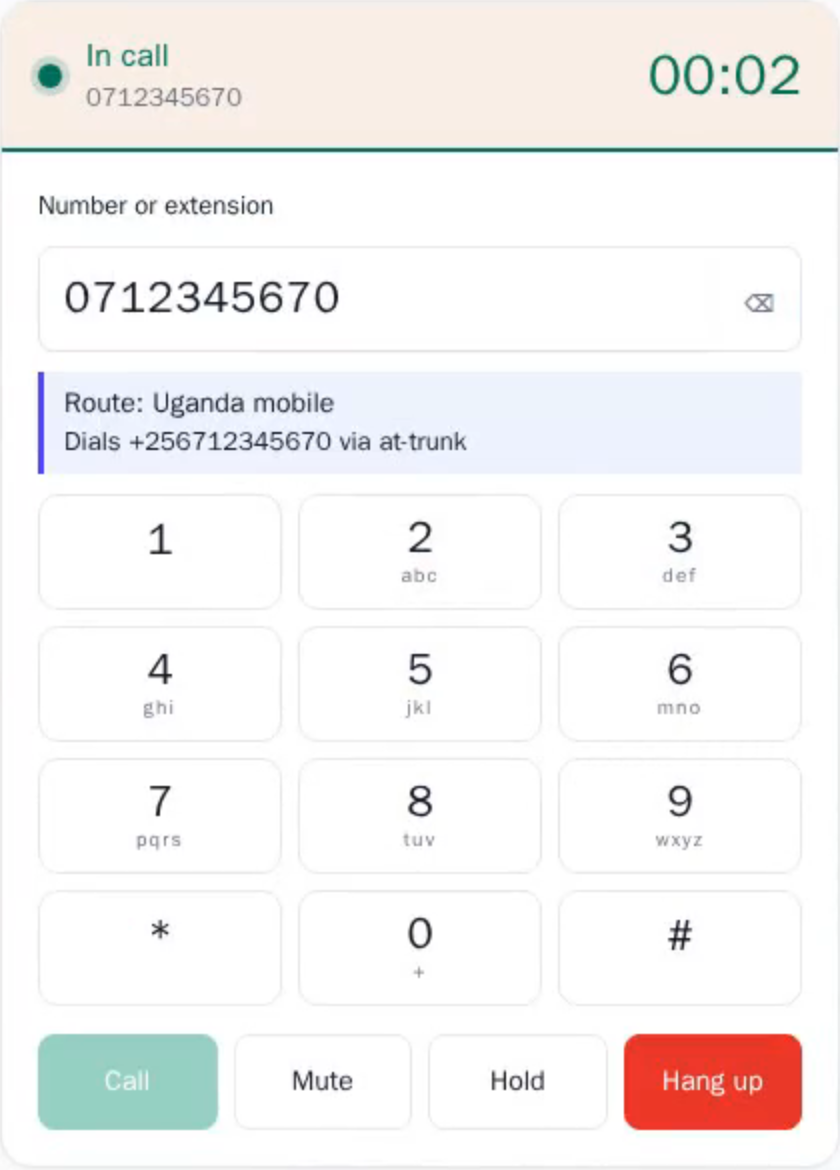
The calling screen looks like a phone keypad. New people get used to it in a few minutes.
- Open the web page and sign inNothing to install. A computer with internet and a headset is enough.
- Type the number, press CallMute and hold buttons work like on any phone.
- Hang up, and that's itThe result and the recording save themselves. No spreadsheet, no end-of-day report.
- No personal SIM needed
- Works on a phone screen too
- Good work shows in the numbers
It's still a phone call. The difference is that you can see everything.
| Desk phone / personal SIM | EasyCall | |
|---|---|---|
| Knowing who made how many calls | Ask each person, or trust a self-reported sheet | Counted for you, visible right away |
| Listening to a call again | No recording | Every call is recorded, press play to listen |
| End-of-day report | Written by hand, easy to get wrong or forget | Already there, nobody has to write it |
| Knowing when customers pick up | Guesswork from experience | A chart by hour and by day of the week |
| Customers you couldn't reach | Buried in the list and forgotten | A separate list to call again |
| When someone leaves the company | The contact history sits on their own phone and leaves with them | The history and recordings stay with the company |
| Customers' phone numbers | Saved in each person's contacts | Partly hidden in the call history |
| Adding a new team member | Buy a phone, buy a SIM, run a line | Create an account and they can call |
You don't need an IT person. We take care of that part.
From the demo to your whole team making calls takes four steps, and the hard ones are ours.
See a demo and try a call
We show you EasyCall running for real. You place a call yourself, listen to the recording and open the report.
You: one short meetingWe set it up for you
We prepare the numbers you call out from, create an account for each team member, and group them the way your company is organized.
EasyCall does it allYour team signs in and calls
Each person gets an account, opens the web page and can start calling. We walk the team through their first session.
You: pass on the accountsYou open the reports
From the very first calls, the numbers and recordings are there for you to see.
Automatic
All you need to prepare: a computer with internet and a headset for each team member, and a list of who will be calling.
What business owners ask before they start
Do I have to buy any equipment or a phone system?
No. Your team uses the computers they already have, plus a headset. Nothing has to be installed at your office.
My team isn't good with computers. Can they use it?
Yes. The calling screen looks like a phone keypad: type the number, press Call, press Hang up. We walk the whole team through their first session.
Where do I listen to the recordings?
On the Call history page. Every call has a play button, and it plays right there with nothing to download.
Is my customer information safe?
Each company has its own separate space for its data, apart from every other company. Customer phone numbers are partly hidden in the call history.
How much does it cost?
Use our pricing estimator to see setup, monthly, phone number and per-minute costs for your team.
See it for yourself, and make a call yourself
Message us on WhatsApp to book a demo. You see EasyCall running for real before you decide anything.
- Place a call yourself and listen to the recording
- See the report a manager sees every day
- Ask anything about setup and cost for your team